

Creating a proposed portfolio in Fabric is a great way to identify how any changes you want to make to a client portfolio will affect the allocation, risk, return, taxes, and exposures of your client's holdings. By creating a proposed portfolio, you can get a clear picture of the potential impact of your changes before you make them to your client's actual portfolio.
This document will provide step-by-step instructions on how to create a proposed portfolio in Fabric. We will cover everything from setting up your proposed portfolio to adding and removing investments to running simulations to see how your changes will affect your client's portfolio.
Benefits of creating a proposed portfolio in Fabric:
- See how your changes will affect your client's portfolio before you make them: As mentioned above, creating a proposed portfolio is a great way to identify how any changes you want to make to a client portfolio will affect the allocation, risk, return, taxes, and exposures of your client's holdings. This information can be invaluable in making informed decisions about your client's portfolio.
- Get feedback from your client: Once you have created a proposed portfolio, you can share it with your client and get their feedback. This is a great way to make sure that you are on the same page with your client and that they are comfortable with the changes you are proposing.
- Use proposed portfolios to educate your clients: Proposed portfolios can also be used to educate your clients about different investment options and strategies. This can be a great way to help your clients make informed decisions about their own financial future.
If you are a wealth manager who wants to provide the best possible service to your clients, then creating proposed portfolios in Fabric is a great way to do it.
By the end of this document, you will be able to create proposed portfolios in Fabric like a pro!
Feature Video
Creating Proposed Portfolios
Choose the Client Portfolio you want to propose changes for.
In the Fabric application, you can only create proposed portfolios for client Portfolios, not the overarching household, so the first step is to select the client portfolio you’d like to create a Portfolio for:
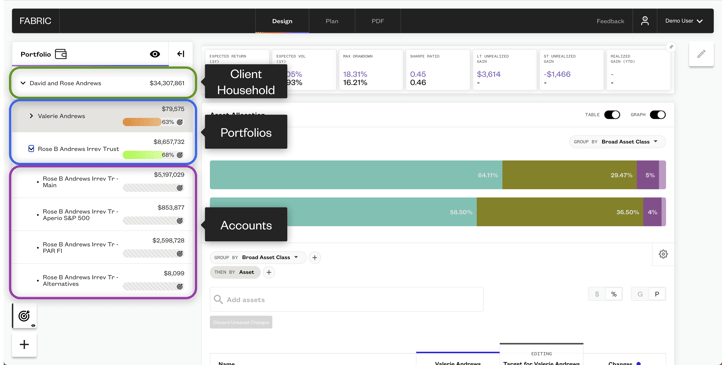
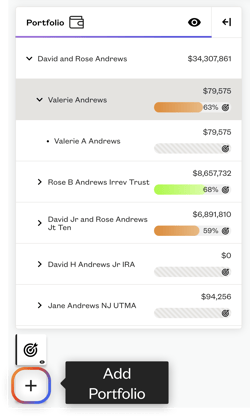
You’ll know that you have a portfolio selected when you click the Plus ‘+’ button and the “Create Proposal” button is activated.
2. Create a Proposal
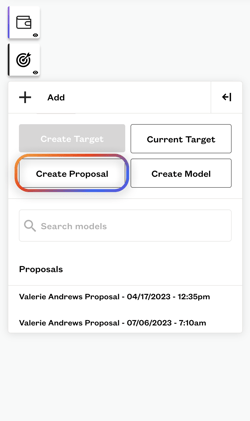
Click on the plus button in the report's navigation panel (left). In the ‘Add’ panel, click ‘Create Proposal.’ This will create a new proposal for that client's portfolio, which begins as a copy of the client’s current portfolio. The edit panel on the right side of the screen will open up and show you the following:
- The current allocation of the client’s portfolio.
-The target allocation for that client’s portfolio (if the portfolio has a target set).
-The current allocation of the proposed portfolio you are creating (this will start as a copy of the client’s current portfolio).
-The changes from the client's current portfolio to the proposed portfolio.
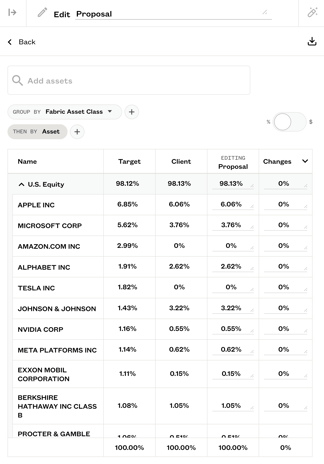
Or make changes in the asset allocation table directly on the risk report page.
.png?width=1920&height=1005&name=New%20Proposed%20Portfolio%20(2).png)
Edit Panel Components
The edit panel that you see here consists of multiple different controls.
- Proposed Portfolio Name & Edit
- Back Button
- Trade Export Button
- Add Assets to The Portfolio
- Edit Grouping
- Percent & Dollar Toggle
- G/P toggle
- Settings
- Portfolio Edit Table
- Guided Rebalance
You can see details on each of these controls below.
3. Edit your Proposal
.gif?width=914&height=439&name=Edit%20Proposal%20GIF%20(1).gif)

Make changes to your proposed portfolio. As you make changes to the proposal, the report will update to reflect the risk, return, allocation, exposure, and taxable gain incurred by the changes you make.

If the proposed changes break any constraints set at the client or advisor level a caution icon will pop up defining the constraint and informing you that a constraint has been broken.
Here are some things to keep in mind when making changes to your proposed portfolio:
- The proposed portfolio value must always equal 100% or the same value as the current client portfolio.
- If you exceed the proposed portfolio value, the report on the left will not update.
- If you decrease the proposed portfolio value, the report on the left will update to reflect the changes you have made allocating the remainder to cash.
- You can make changes to the proposed portfolio by adding or removing investments, or by changing the allocation of investments.
- When you create a proposed portfolio, you are creating a portfolio allocation (in %). If you load the proposal tomorrow or next week, assets that were unchanged may show the changes required to bring them back to the allocations in the proposal.
4. Export Your Trades

When you are complete with the proposed changes that you have made to the client portfolio, export the trades from Fabric to be used with your execution system for implementation.
Next Steps See Trade Export: Export Trades from Fabric for Execution →
Proposal Changes Details
Proposed Portfolio Name & Edit

At the top of the Edit panel, there is the name of the portfolio you are editing. If you select the name here, you can type in the box to change the name of the proposed portfolio you are editing. To save your changes, just click away from the box or press enter/return.
Back Button

The back button allows you to go back and select which portfolio you want to edit. If you have multiple editable portfolios in the report, you can select which one you’d like to change.
Trade Export Button

The trade export button allows you to export the trades required to get your client from their current allocation to the proposed allocation you have created in your proposed portfolio.
For more information on Trade Export, see: Export Trades from Fabric for Execution →
Add Assets to The Portfolio

Search within the Add Assets box to find assets you’d like to add to your client portfolio. When you add an asset, it will add that asset to the portfolio with an allocation of $0/0%, which you can then update in the Portfolio Edit Table.
Edit Grouping

You can use the edit grouping control to select attributes to group the portfolio edit table. The ‘+’ Plus button allows you to add a second layer of grouping.

After selecting the attributes that you would like to group by, the portfolio edit table will automatically update to group the assets in the portfolio by your attributes.

Percent & Dollar Toggle


The percent & dollar toggle allows you to toggle whether you are seeing the allocations of the client portfolios by the percentage of the entire portfolio each asset or grouping is allocated to, or the actual dollar value of each asset or grouping.
Percent of Group and Group Toggle
Toggle between editing percent of group and percent of the portfolio.

Discard Unsaved Changes
Discard unsaved changes allows you to revert back to the original portfolio.

Settings
The settings button removes the grouping, add assets, percent versus dollar and G/P toggle.

Client Constraints
Create asset and attribute restrictions for each individual client that align with their values.


Portfolio Edit Table
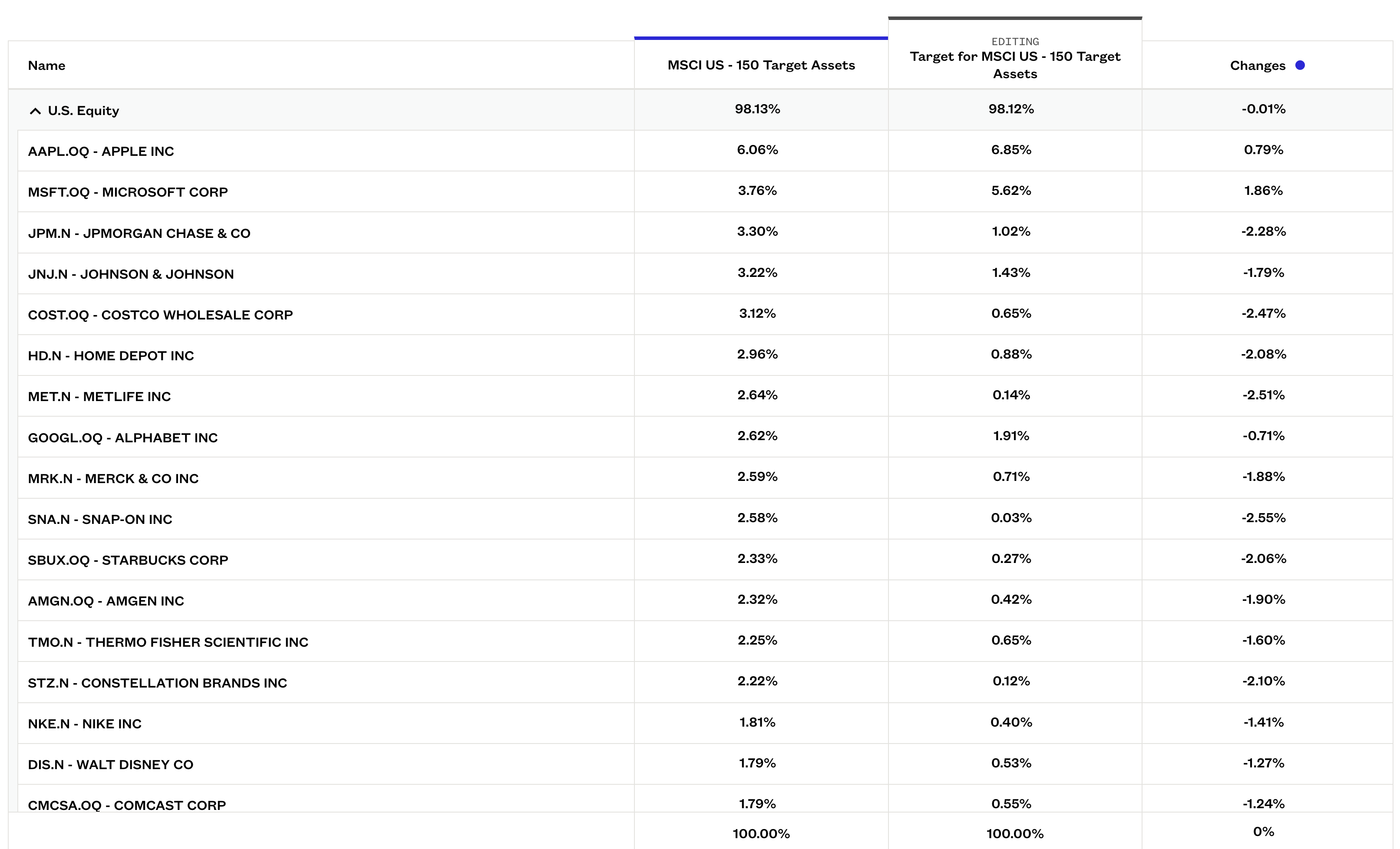
The portfolio edit panel allows you to edit the allocation of your proposed portfolio. You can make changes by either setting a new allocation for an asset or grouping by changing the value in the proposal column, or you can make changes by selecting how much you’d like to buy or sell in the changes column.
- Changing groups
- If you make changes to the allocation of a group, all the underlying assets will change proportionately to their current allocation in the proposed portfolio.
- Cash Sweep
- If you sell assets within your portfolio, the portfolio edit panel will automatically add the value you sold to the cash position you have in your portfolio. If you buy, you will need to reduce the amount of cash in your portfolio by hand.
You can also expand and collapse groups to make navigation of the edit panel easier. This can be done by clicking the arrow next to each group which will toggle between expanded and collapsed.
Guided Rebalance

The guided rebalance button takes you to the controls for the Fabric Guided Rebalance and allows you to automatically rebalance the proposed portfolio you have created to reduce the tracking error of the client portfolio to its target.